
Find and manage invoices
Use search, filters, sorting, columns, saved views, archive, and available bulk actions.
Find the right invoices
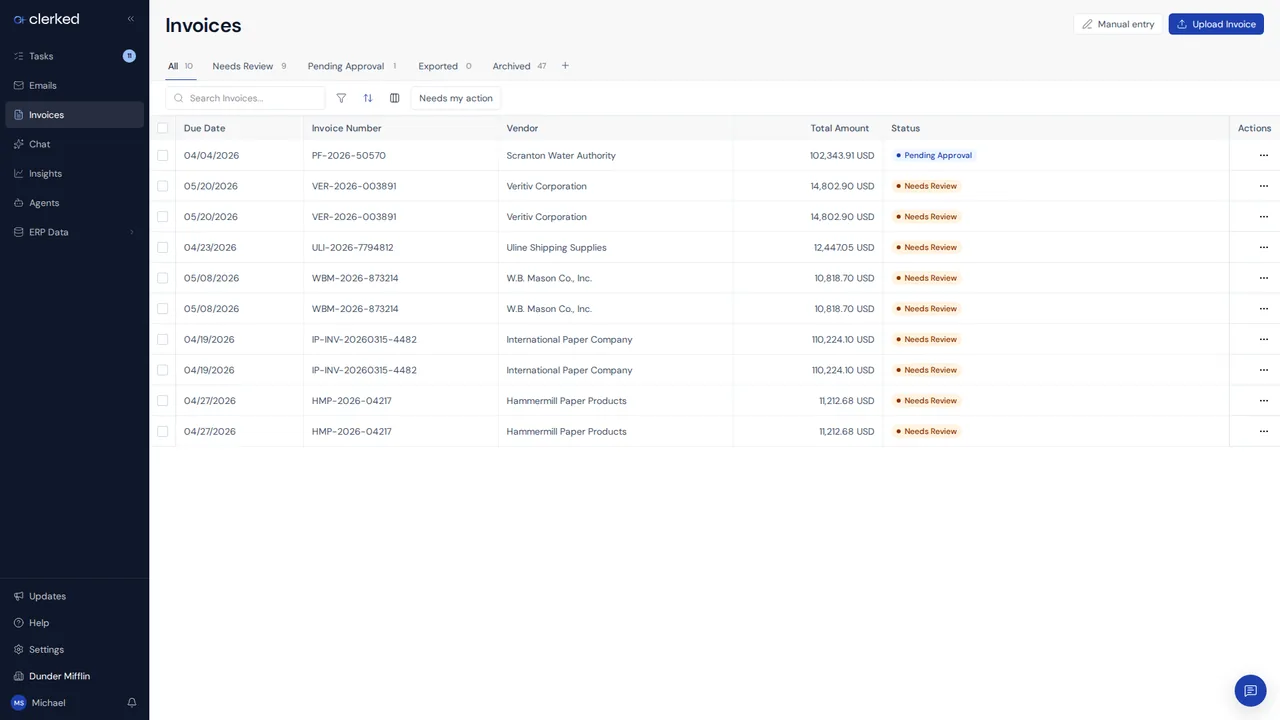
Use the Invoices workspace when you need the complete invoice list rather than only assigned tasks. The rows and available columns reflect the current company’s fields and your visibility.
Read approval status
The table can include an Approval column. Pending approvers appear as initials, and hovering over them shows more detail. An empty cell means there is no pending approver right now. Decision buttons appear only when your assignment, access, the invoice state, and approval policy allow them.
-
Search for a known value. Search can use the invoice values configured for your company. If a value is not found, clear other filters and check that you are in the correct company.
-
Add focused filters. Use filters for a repeatable question, such as invoices from a vendor or invoices in a visible state. Check the count and active filter chips before selecting rows.
-
Arrange the table. Use Sorted by and Columns to make important values easier to compare. Save the view when you need the same layout again. Saved views change the list presentation, not the invoices.
-
Select invoices carefully. Wait for the list to finish updating, then select the intended rows. Bulk actions only appear when your access and the selected invoice states support them.
-
Review partial results. Clerked reports any failures. Check the invoices’ current states before retrying instead of repeating the action across the full selection.
Return an invoice to AP
When you are a current authorized reviewer or an invoice editor with current write access, the row action menu offers Return to AP during validation or approval. Enter the required reason for a fresh AP review. At the first AP review, before anyone has recorded a decision, make corrections on the invoice and submit it instead. Saved values remain, and earlier approvals do not count in the new cycle.
Related
Announced in Clearer invoice review, validation, and Return to AP.