
Review an invoice
Compare the source document with extracted values, coding, accounting observations, and current checks.
Read the workspace
The invoice details appear beside the source document. The header shows the invoice’s current state and the action available to you. The right side has Invoice and Activity tabs. Use the floating Clark button for help without leaving the review workspace.
Returned invoices show the current return beside their status. Open the feedback to read the reason, who acted, and when. The same current feedback is available from the invoice list’s status cell; Tasks adds a short return label. Use Activity for earlier decisions. A previous return is not shown as current after the invoice leaves that review.
On-hold invoices show the paused review, approval, or export phase when it is known. The Hold reason and return reason remain separate. Resume restores the paused work; the invoice cannot be reviewed or approved while it is on hold.
When accounting observations are available, read the short explanation and use Show more for details. These observations help you review the invoice; the current checks and available actions determine whether it can move forward. Older observations may disappear after an edit rather than describe values that have changed.
Review line items
Line items appear in company-defined sections when those sections are available. Use Review view to inspect full line details or Table view to compare rows across columns. In a section, select its Add button to create a line. On a row, choose Edit when you can change it or View when you have read-only access. A validation icon opens the affected field. Select rows to open the bulk bar when your access allows it.
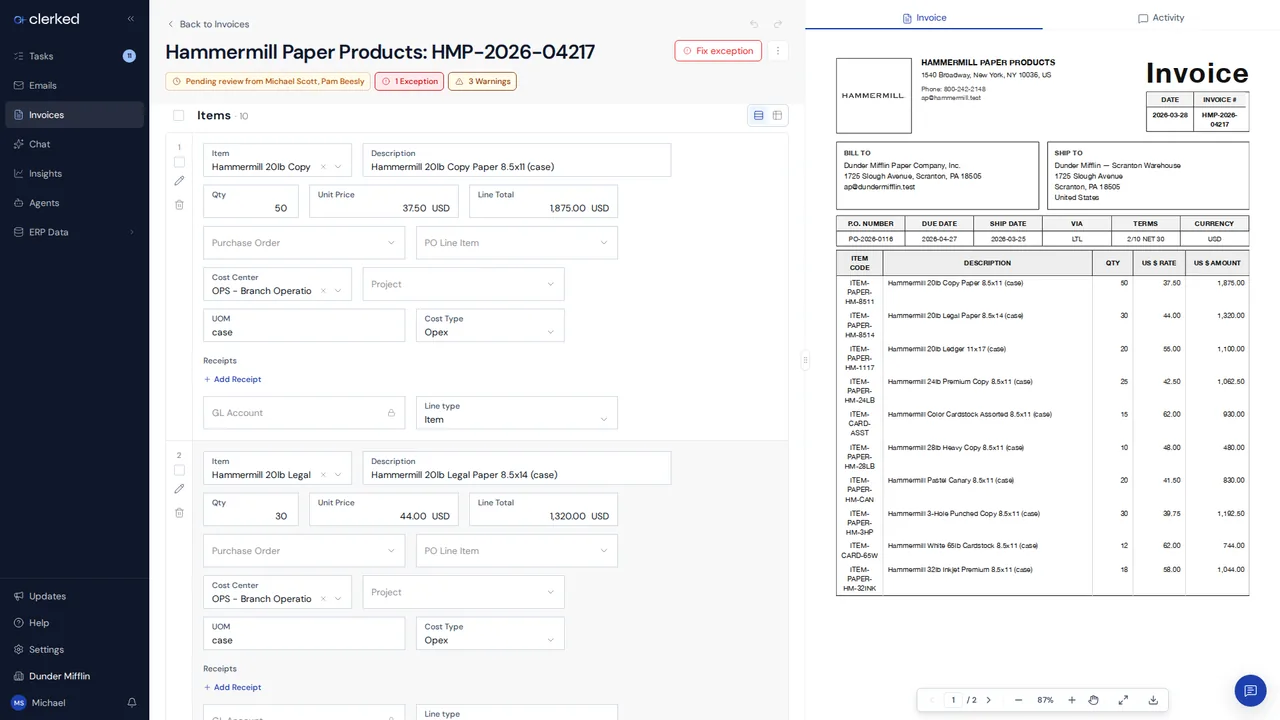
The invoice header may show related-record chips above the fields when your company layout includes them. Select a chip to inspect the linked record.
Need help planning a correction? Ask Clark to prepare a proposal and review it before applying it.
While a Clark proposal is open, the invoice uses Review view to show the changed fields together. The view toggle returns after the proposal finishes and the invoice refreshes.
Review the invoice
-
Confirm the identity. Compare the vendor, invoice number, invoice date, due date, currency, and total with the document. Correct the value in Clerked when they differ.
-
Review line items and coding. Check descriptions, quantities, amounts, accounts, and any company-specific dimensions. Make sure split allocations add up to the intended line or invoice amount.
-
Check matching and validation. Review the purchase order or receipt comparison when present. Open each warning or issue and resolve anything that blocks the next step.
-
Wait for saved confirmation. Clerked saves supported edits as you work. Do not leave the page while a save is still in progress.
-
Take the available action. Depending on the invoice and your access, this may be submit for review, submit for approval, approve, return to AP, retry an export, or another guided action. Use Activity to confirm what happened and who acted.
Correct an invoice after approval work starts
Current reviewers and invoice editors can edit the fields their access allows. Supported changes autosave and validation feedback refreshes as you work; saving does not move the invoice to another workflow stage.
During approval, changes that do not require AP review leave Approve and Return to AP available, provided validation is clear. When a changed field requires AP review, Clerked adds a Changes require review from AP disclosure and shows one Return to AP action instead of Approve. Open the disclosure to see the affected fields, then enter a reason to return the invoice through AP validation and fresh approval. Returning those fields to their original values restores Approve, provided no other issue blocks approval.
When Return to AP is available to you, you can return an invoice with no edits, ordinary edits, or changes that require AP review. Enter a reason and wait for saving to finish. Saved facts remain, while the previous review cycle closes and AP validation starts from the beginning. Previous decisions remain in Activity and do not count toward the new approvals. During validation, Return for review is hidden at the first step until another reviewer at that step has recorded a decision; there is no earlier review to restart yet. At the first AP review, before anyone has recorded a decision, make corrections here and submit instead. Returning from approval starts a new validation review. If Clerked cannot find an eligible AP reviewer, it refuses the Return and keeps the current review.
An export-readiness issue can leave Approve available so you can recheck a repair, such as restoring a missing source PDF. Approval proceeds only after the check passes. You do not need to edit a field or reload the page to retry.
Review or restore a changed field
During approval, hover over or click Changed beside a field to see its previous value above an arrow pointing to its current value. In the expense table, use the small colored marker inside the field’s corner instead. Discard change returns that field to its value at the start of approval without making an approval decision. These controls still work after refreshing the page. They are also available during eligible failed-export recovery.
The changes chip provides an overview. Changes requiring AP review appear first, followed by Other changes, such as notes. Use the field links to find a change, or Restore available changes to restore the supported changes from both sections. For line additions or deletions, use Remove added line or Restore removed line in the overview. Changes that cannot be reverted remain listed with an explanation.
Discard applies immediately and updates dependent values, such as recalculating the subtotal after removing an added expense. Some changes cannot be discarded because the original value is unavailable or current rules no longer allow it. If the document changes while discard is being processed, Clerked refuses the stale request instead of overwriting newer work. Undo remains separate: it reverses recent actions rather than returning a field to the start of approval.
When Withdraw my approval is available, you can retract your recorded approval while the invoice remains in approval. Saved edits remain. Withdrawing a vote does not guarantee that approval stops if enough other approvals remain. When Return to AP is available, use it with a reason to start fresh review.
If values change while you review
Clerked can receive another update while the page is open. Read any refresh or conflict message before saving again. Preserve the newer value unless you have verified that your correction should replace it.
For company setups that require review of connected accounting data, changes to a selected vendor, payment term, or another accounting reference can require fresh AP review even when the selected record stays the same. If submission asks you to review refreshed information, check the current values and submit again. A failed refresh does not count as a completed review.
Related
Announced in Clearer invoice review, validation, and Return to AP.