
Review a multi-invoice PDF
Confirm detected page groups, adjust them, and recover safely before creating invoices.
Choose the right document outcome
Open the attachment from the conversation. Start by deciding whether it contains no invoice, one invoice, or multiple invoices. Choose These are multiple invoices only when separate invoices are present in the same file; page count alone does not imply multiple invoices.
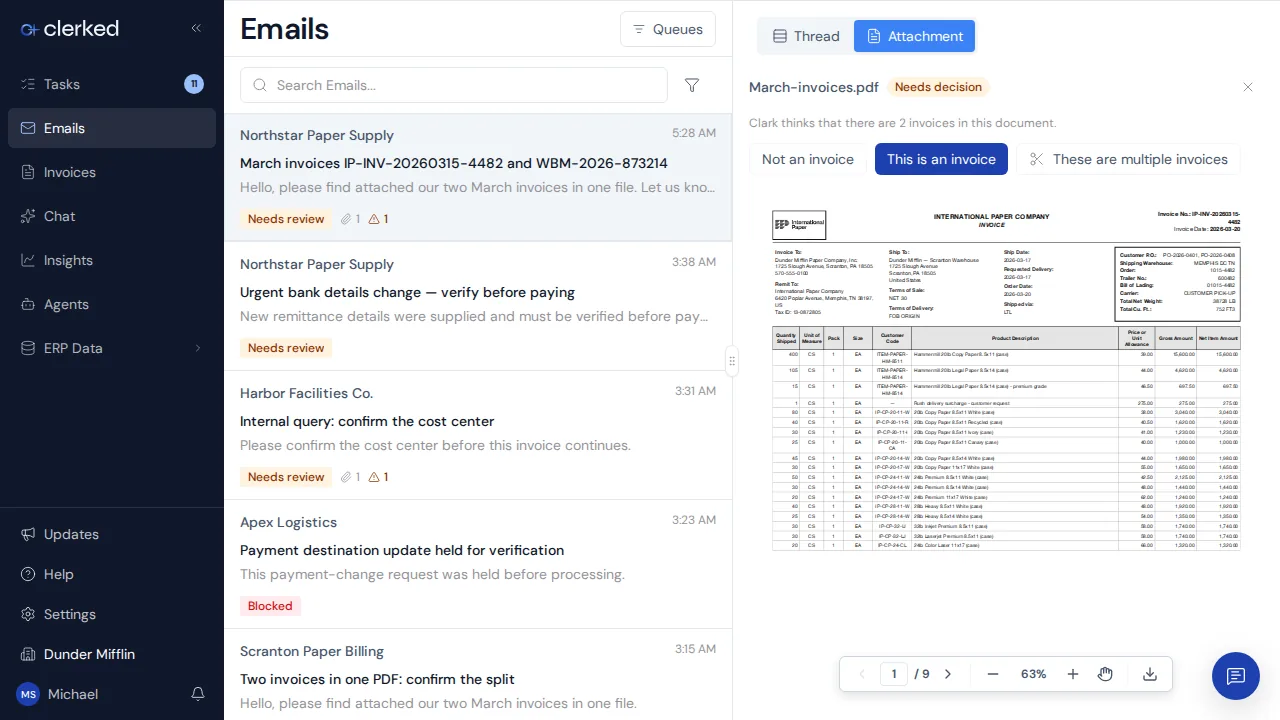
Review multiple invoices
The attachment panel shows what Clark thinks the document contains and pre-fills the split editor with its proposed page groups. A person confirms the split unless your company setup allows high-confidence splits to apply automatically. Lower-confidence proposals still come here for review.
Review pages in the editor
The page-first editor opens with the heading Review [document] pages, using the document label in place of [document]. Pages appear in a strip, and document groups use color badges. Drag pages to reorder them. Use the scissors between pages to start or remove a cut. Each page has Duplicate page, Remove page, and View full page preview actions.
-
Inspect every proposed group. Compare the page thumbnails with the invoice shown on each page. Keep supporting pages with the invoice they explain.
-
Correct the pages. Move a page to the right group, exclude a non-invoice page, rotate a page, or add another group as needed. Use a copy only when the same supporting page belongs with more than one invoice.
-
Check each group before confirming. Each invoice should have its complete pages in the correct order. Confirm only after the group boundaries match the source document.
-
Verify the result. The conversation should show the attachment as resolved and the expected invoice records should appear. If a group fails, keep the successful invoices and retry only the unresolved work shown by Clerked.
Change an earlier decision
You can change the attachment decision while Clerked can still cancel the child processing work. If the control is unavailable, review the created invoices and contact support with the conversation and attachment details.
Related
Announced in Clearer invoice review, validation, and Return to AP.