
Work from Tasks
Use the task queue to focus on assigned work and verify each task’s resulting state.
Before you start
Tasks shows work assigned to you or available to you through a shared review pool under the current company. The tabs can include All, Emails, and Invoices. A tab only appears when there is relevant work and your access allows it. Invoice review, approval, and failed-export recovery share the invoice family with the appropriate Review, Approve, or Resolve action.
Complete a task
-
Open Tasks. Choose a task type or stay on All, then use search, filters, or sorting to narrow the list.
-
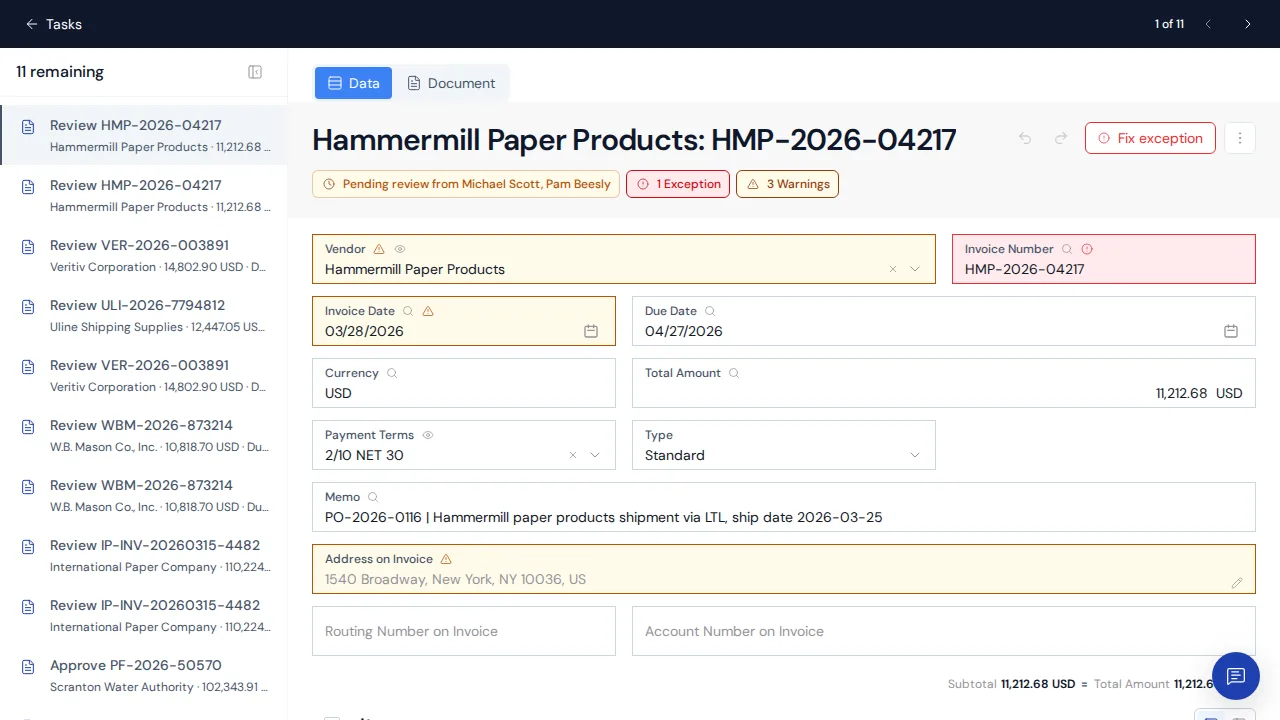
Open a task or select Start tasks. Focus mode keeps the remaining queue beside the full invoice or email context. Read the source record and the reason it needs attention before taking action.
-
Complete the requested decision. The available buttons depend on the work type. For example, an invoice may need validation or approval, while an email attachment may need an invoice decision.
-
Check what needs your attention next. Clerked checks the current assignment after your decision. If a returned invoice is still assigned to you, it stays open and you can continue reviewing it. When your work on that task ends, focus mode continues to the next outstanding task after it. Tasks you passed over stay in the queue, and focus mode returns to them once you reach the end.
The completion screen appears when no work remains in the current queue. New work opens automatically if it arrives while that screen is open. Completed items in the rail are read-only references, not outstanding assignments.
Clark proposals are reviewed in the conversation and on the invoice, including an invoice opened in Tasks focus mode. They do not create a separate task. When you finish the last task in the queue, focus mode returns to earlier work you passed over.
When a task disappears
A task can leave your queue when another reviewer completes it, the underlying record changes, or it is no longer assigned to you. Return to the task list instead of using an old browser tab to make a decision.
Failed-export Resolve rows are pooled for users who hold Invoice Export and can see the invoice. The Notifications bell does not duplicate actionable Tasks.
Announced in Meet Clark.