
Correct an invoice with Clark
Ask Clark for a correction, answer clarifying questions, and apply only the proposed changes you verify.
Start a conversation
-
Open Clark from the lower-right button. Select Open Clark, then describe the outcome in business language, such as “Split this line equally across the two selected values.” Mention the relevant line or field when it helps.
-
Answer clarifying questions. Clark keeps the conversation on the invoice. Choose an offered answer and add any needed detail, or type your own answer. Select Send answer when your response is complete. If sending fails, your answer remains available to retry.
-
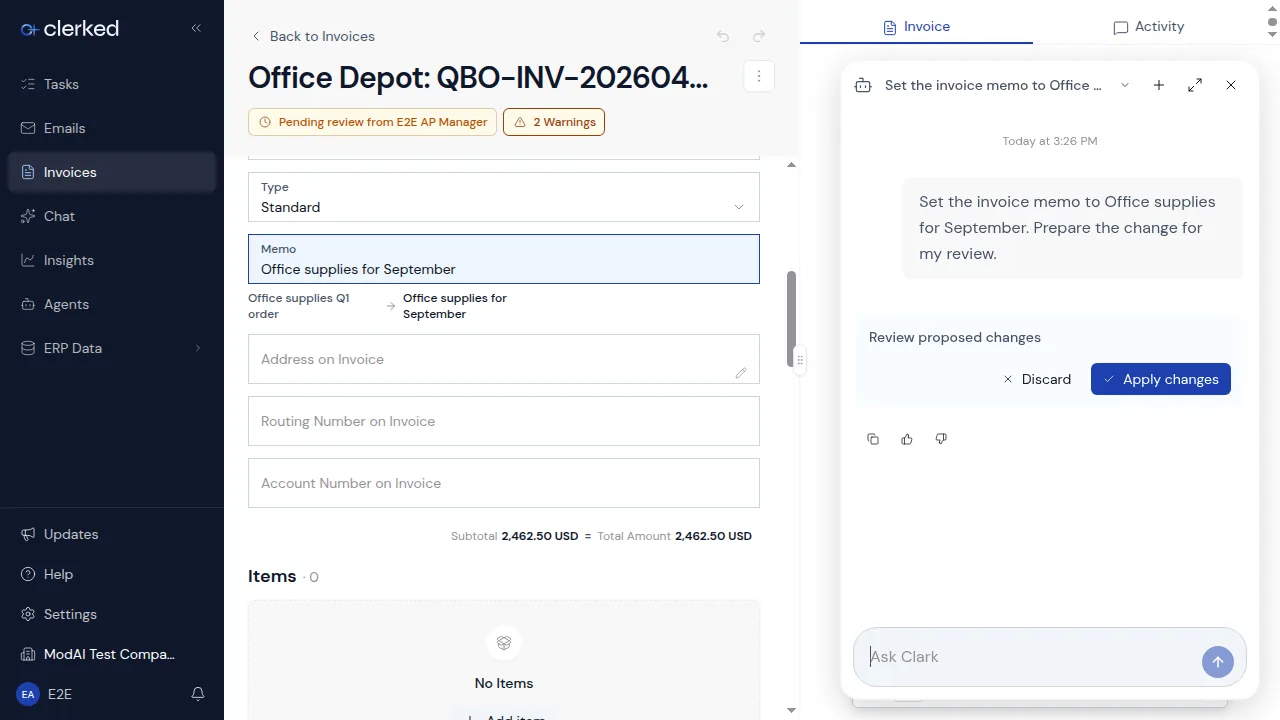
Ask Clark to prepare changes. The invoice switches to Review view while the proposal is open. Compare each changed field’s before and after values with the document and business context, including changes to totals and allocations. Use the labeled checkbox above the line fields to include or exclude a proposed line change. A change affecting several lines has one checkbox, such as Include changes to 2 lines; a split and its new rows stay together.
Removed lines are labeled with their original invoice line number.
When offered, select Review changes to bring the proposed fields into view. On a smaller screen, this reveals the invoice instead of leaving the Clark panel over it.
-
Review and apply the proposal. Select Apply changes after checking the selected values. The invoice does not change until the apply action succeeds. Wait for the saved state, then check totals, coding, matching, validation, and the approval route.
Ask for a memory
Clark can prepare a memory when you explicitly ask. Review the proposed memory and select Approve to save it.
Clark can prepare invoice changes and requested memories. It cannot approve invoices or take other business actions. Each apply or approve action is checked again against your permissions, current validation, and the latest invoice version.
Finish a proposal safely
You can close the Clark panel to inspect the invoice while keeping the proposal open. Reopen Clark to apply or discard it. Closing the panel does not save or discard your proposed changes.
Undo and Redo are unavailable while a proposal is pending or applying. Select Apply changes or Discard before using those controls. A finished proposal marked stale does not block ordinary edits or Undo and Redo. A receipt-allocation proposal can include a purchase-order reference change, so review both before selecting Apply changes.
If Apply changes is unavailable, read the explanation on the proposal. Wait for a pending preview or save to finish. If the invoice shows Proposal preview unavailable, select Retry there to load the same proposal again. Retrying the preview does not save changes or create another proposal. Apply stays unavailable until the preview loads; you can still discard a pending proposal. Review the changed fields and any values that will be cleared. Proposal checkboxes choose what Clark will apply; ordinary row checkboxes select lines for bulk editing.
The view toggle is unavailable while the proposal is open. After the decision finishes and the invoice refreshes, your previous Review or Table view returns.
While applying or discarding, wait for the decision to finish. If Clerked cannot confirm the result, check the latest action status before trying again. The Clark panel stays open while a proposal is applying; if that takes unusually long, the panel lets you close it, and the outcome still appears on the invoice and in the conversation.
A proposal that can no longer be applied, for example because your access or the company’s rules changed after you approved it, shows Could not apply. Ask Clark to prepare a new proposal.
If the invoice changes and the proposal becomes stale, reload the current invoice values and ask Clark to prepare a new proposal. A pending proposal can still offer Discard when its preview cannot be applied. A proposal already marked stale or otherwise finished cannot be applied or discarded again. This keeps newer work from being replaced by an older proposal.
Related
Announced in Meet Clark.