
Ask Clark about AP work
Ask about accessible AP work, review proposed changes, and check the records behind each answer.
What Clark can do
Clark answers questions about AP records you can access. It can return a written answer, a list of records, a vendor summary, a chart, a table, or a downloadable file. Open the supporting records to check an answer.
You can ask Clark to prepare an invoice change or explicitly request a new memory. Review the proposed invoice fields or memory before it is saved. Your permissions, the company’s validation rules, and the current invoice version still apply.
When available, open Chat below Invoices in the sidebar, or open Clark from the bottom-right launcher. Your company can enable Chat and the launcher separately, so you may have one without the other.
If you can access more than one company, Clark can use those companies in one conversation and identify the source company in its results.
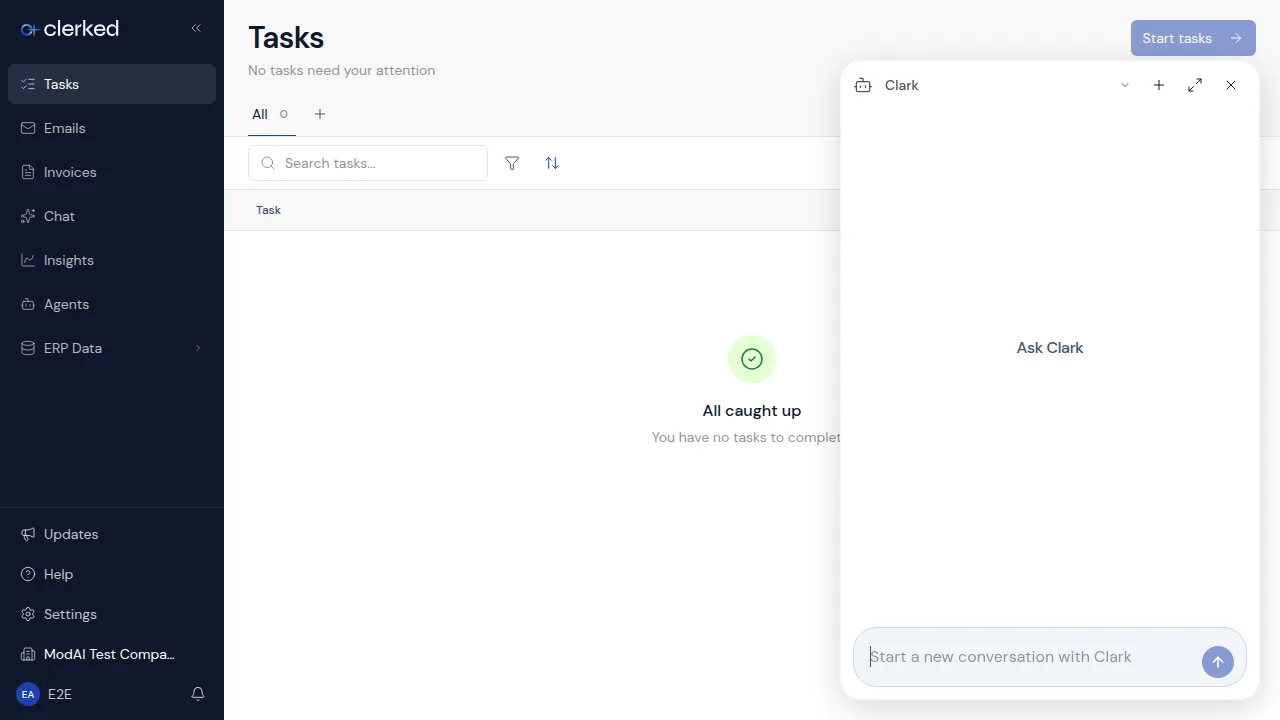
Ask a useful question
-
State the job. Ask for the records, comparison, trend, or exception you need. For example: “Show invoices waiting for my approval” or “Which vendors have the most invoices this month?”
-
Add useful limits. Include the period, vendor, invoice, or other visible business value when it matters. Clark uses your current access.
-
Open the supporting records. Check the linked invoices or connected accounting records before making a financial or approval decision. A conversational answer helps you find and understand work; the underlying record remains the source for action.
-
Clarify an incomplete answer. Continue in the same conversation and name what is missing. Start a new conversation when you change to an unrelated question.
If you do not see Clark
Clark appears when the relevant entry point is enabled for your company and available to your role. Ask an administrator to confirm your company assignment and access.
Continue or start fresh
Chat and the panel share conversation history, but they remember separate current selections. Chat remembers its selected conversation. The panel remembers a selection for each workspace or record. Returning to that workspace or record resumes the panel selection. Changing a filter or tab does not start a new conversation.
Choose New conversation on Chat, or New chat in the panel, for an unrelated question. To continue an earlier conversation, choose it from history; conversations are available from either Chat or the panel.
To stop an active response, choose Stop Clark. Requesting stop… means the request is being sent; Stopping… means it was accepted and is still settling. Wait for Stopped. to confirm completion. The turn remains in the conversation. Refreshing the page before completion can show the ordinary progress message again.
An archived Clark conversation stays read-only. Choose Restore chat to continue it.
If Clark says it is busy, wait briefly and try again. That message does not mean a new response has started in your current conversation.
Announced in Meet Clark.