
Configure email ingestion
Choose which senders and attachments Clerked accepts, reviews, and processes automatically.
Set up invoice intake
Open Settings > Company > Email sending to review the company’s forwarding address and available outbound-email controls. Ask your email administrator to forward only intended AP mail, then test with a controlled, non-sensitive message.
Do not forward mailbox credentials or unrelated mail. Each Clerked company has its own intake context, so confirm the current company before copying an address.
Choose what happens to new senders
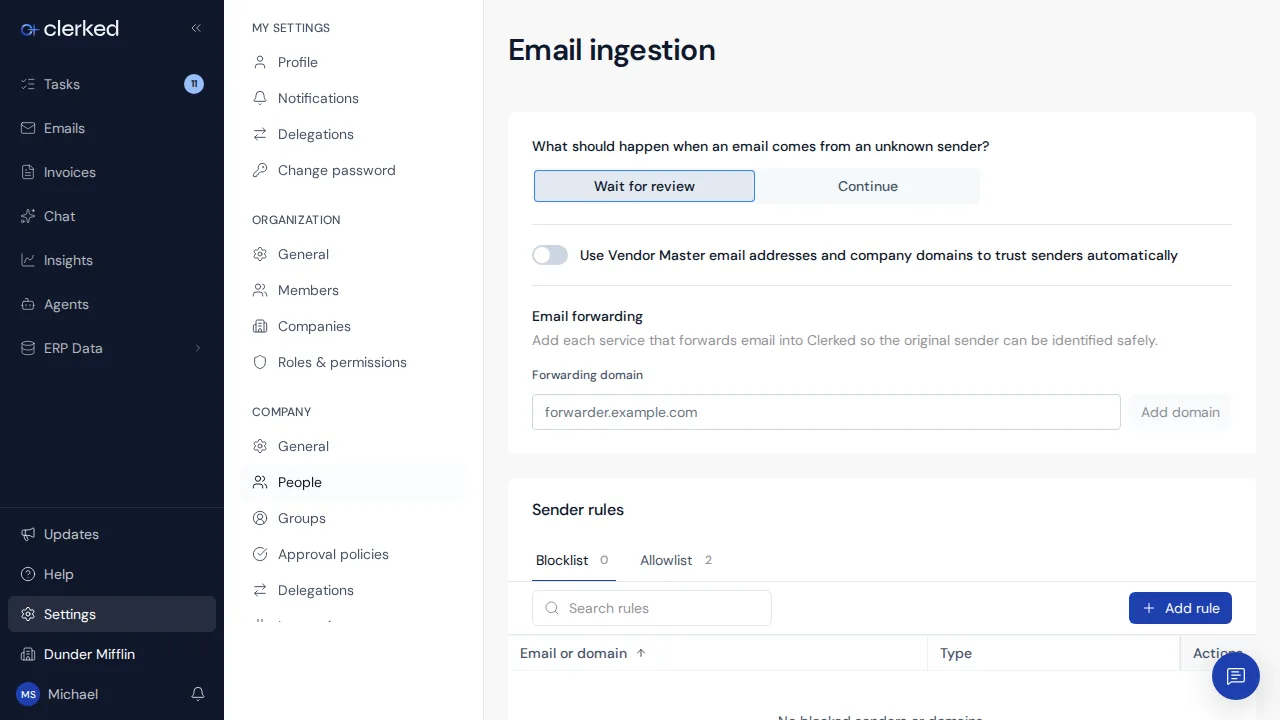
Open Settings > Company > Email ingestion and choose what should happen when an email comes from an unknown sender:
- Wait for review holds mail from a sender Clerked does not know yet. This is the default.
- Continue lets mail proceed when there is no sender rule or Vendor Master match.
Use the Blocklist to stop an exact sender or domain. Use the Allowlist when a trusted sender should skip sender review. A block takes priority, and an allow rule does not bypass checks that confirm how the message reached Clerked.
Use Vendor Master contacts and forwarding domains
Turn on Use Vendor Master email addresses and company domains to trust senders automatically when current contact details on active vendor records should count as trusted senders. If a company does not have vendor email data, the setting creates no match and the unknown-sender choice still applies.
Under Email forwarding, add each service’s Forwarding domain. This proves which service passed along the original message so Clerked can identify the original sender safely. It does not allow every sender on that domain and does not make the original sender trusted.
Choose which attachments Clerked handles
Each supported file group has two choices:
- Keep in Clerked imports attachments in that group. Turn it off only when your team does not want those files in the attachment workspace.
- Analyze automatically asks Clark to classify imported files. When it is off, the attachment stays available in the conversation without creating a review task. A person can open it later and choose Not an invoice, This is an invoice, or These are multiple invoices when the file supports splitting.
The automatic-analysis option appears only while Keep in Clerked is on.
Choose how multiple invoices are split
For When one PDF contains multiple invoices, Review first is the default. Choose Auto-split only when high-confidence splits should apply without a person’s review. Lower-confidence results still need a person.
Verify the change
-
Save sender settings. If the change can release held mail, wait for the message that reports how many held emails Clerked re-checked.
-
Send a controlled message. Confirm it follows the selected new-sender behavior and appears under the intended company.
-
Test attachment choices. Use one file that should be analyzed and one that should stay available for a manual decision. Forwarding-domain and attachment changes apply to new mail.
-
Check a split. Keep automatic splits off when your team wants to confirm every multi-invoice proposal. If you turn it on, verify a high-confidence example and a lower-confidence example.
Review a sender decision
After you make a sender decision in the inbox, look for Decision saved. We’re re-checking this email. Clerked checks the message again with the new rule.
Announced in Email ingestion in one place.