
Configure invoice validation
Choose which invoice issues warn your team or block validation, with supported tolerances and vendor overrides.
Understand the available actions
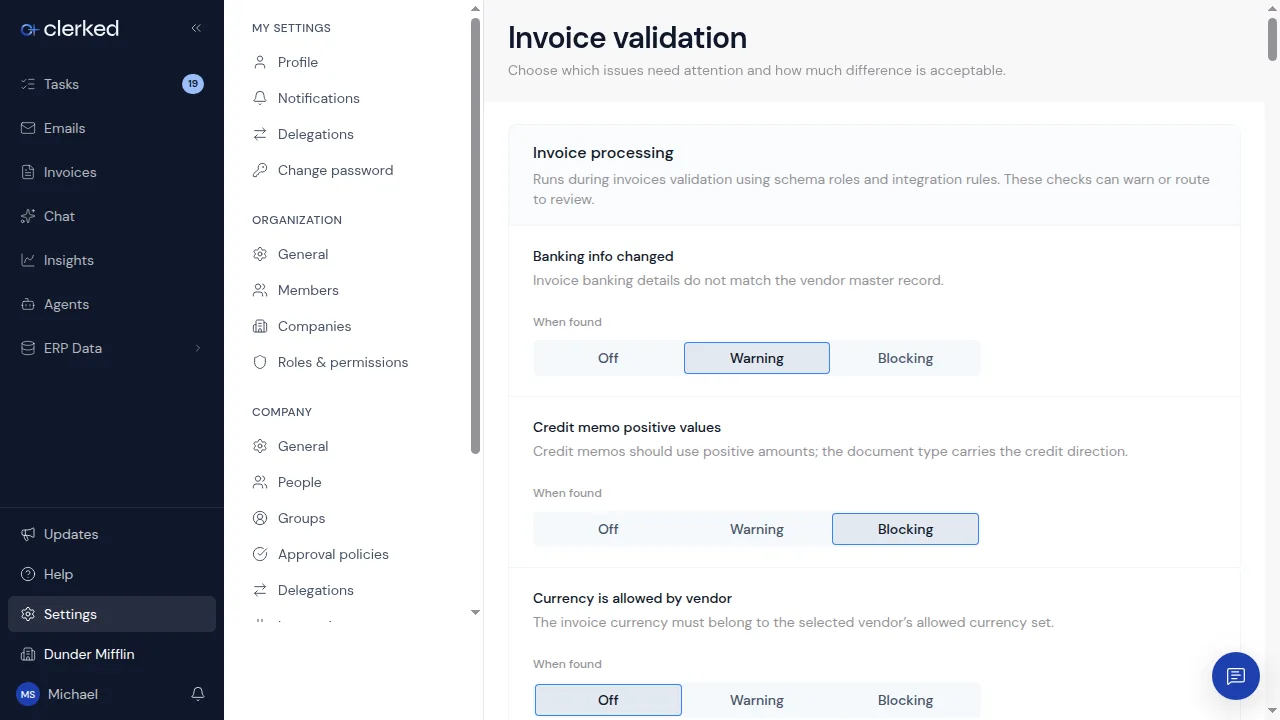
Open Settings > Configurations > Invoice validation. Each check explains the invoice issue it detects and shows only the controls that check supports. Some checks appear only after your integration has the required configuration.
- Off stops that check from reporting the issue.
- Warning shows the issue without holding invoice progress.
- Blocking requires the issue to be resolved or reviewed before the invoice can leave validation.
- The page lists only choices your company can change. Platform-enforced integrity and export safeguards continue to run in the background without appearing as settings.
When your company setup includes purchase-order checks, price, quantity, and receipt checks can appear independently. Each check has its own action and tolerance where supported. The controls are Off, Warning, and Blocking.
Sender rules, Vendor Master trust, forwarding domains, and attachment choices live under Email ingestion instead of invoice validation.
Change a validation check
-
Confirm the current company. Validation choices apply to the selected company, not the whole organization.
-
Read the check description. Identify what the check evaluates before changing the action.
-
Choose the action. For invoice checks, choose Off, Warning, or Blocking. Use Blocking only when the finding must be resolved or reviewed before validation can finish.
-
Set supported values. Some checks also expose a tolerance or another business input under Fine-tuning. Use an approved value and keep units consistent with the label shown. Use Vendor overrides when the check supports different limits for named vendors.
-
Test both outcomes. Verify one record that should pass and one that should trigger the check. Confirm the visible notice and any resulting task or route before relying on the setting.
For purchase-order price checks, Under-price difference outcome lets you choose whether a price below the purchase order, beyond the allowed tolerance, raises a warning or blocks final validation. If you leave it unset, the check’s outcome applies. This option appears only when the required purchase-order line configuration is available.
Announced in Clearer invoice review, validation, and Return to AP.