This update makes everyday review work calmer and more trustworthy: task sessions now open in a focused, full-width workspace, duplicate review works from both invoices in a pair, the ERP ID column shows numbers you recognize, and a round of reliability work landed across processing, editing, and Agent Memories. You do not need to turn anything on. The controls you see still depend on your role, company setup, and connected services.
Screenshots use representative synthetic data in the anonymous Dunder Mifflin capture tenant. Your record names, available tabs, fields, and ERP actions can differ by workspace, permissions, and integration.
Work through tasks in a focused session
Tasks is the queue of work waiting for a decision: emails to review, invoices to review or approve, and memory proposals. Open Tasks in the left sidebar as before. The list now opens with a simple header: the Tasks title, a short summary of what is waiting, such as 3 assigned to you · 1 shared, and the Start tasks button. Tabs across the top only appear for the kinds of work that actually have items right now, so an empty category no longer takes up space.
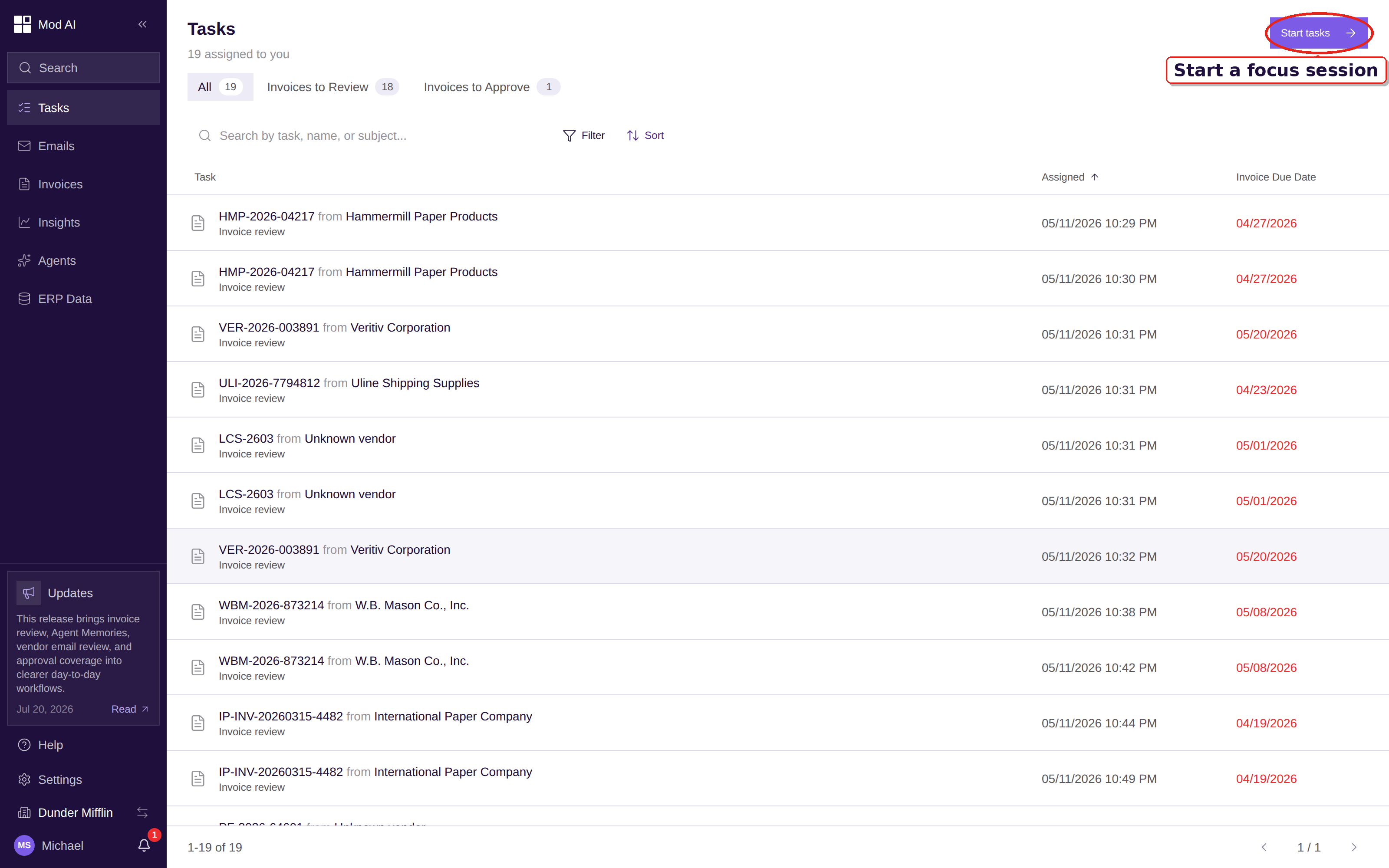
Select Start tasks to begin working through the queue one item at a time.
The bigger change is what happens when you select Start tasks or open a task row. The session now takes over the screen cleanly: the product sidebar steps aside, a single Task session rail on the left guides you through the queue, and the document you are working on gets the full width of the rest of the screen. The rail shows your progress, such as 2 completed · 5 remaining, and you can collapse it when you want even more room. Use the previous and next controls in the header to move through the queue, and use the rail to jump to a specific item.
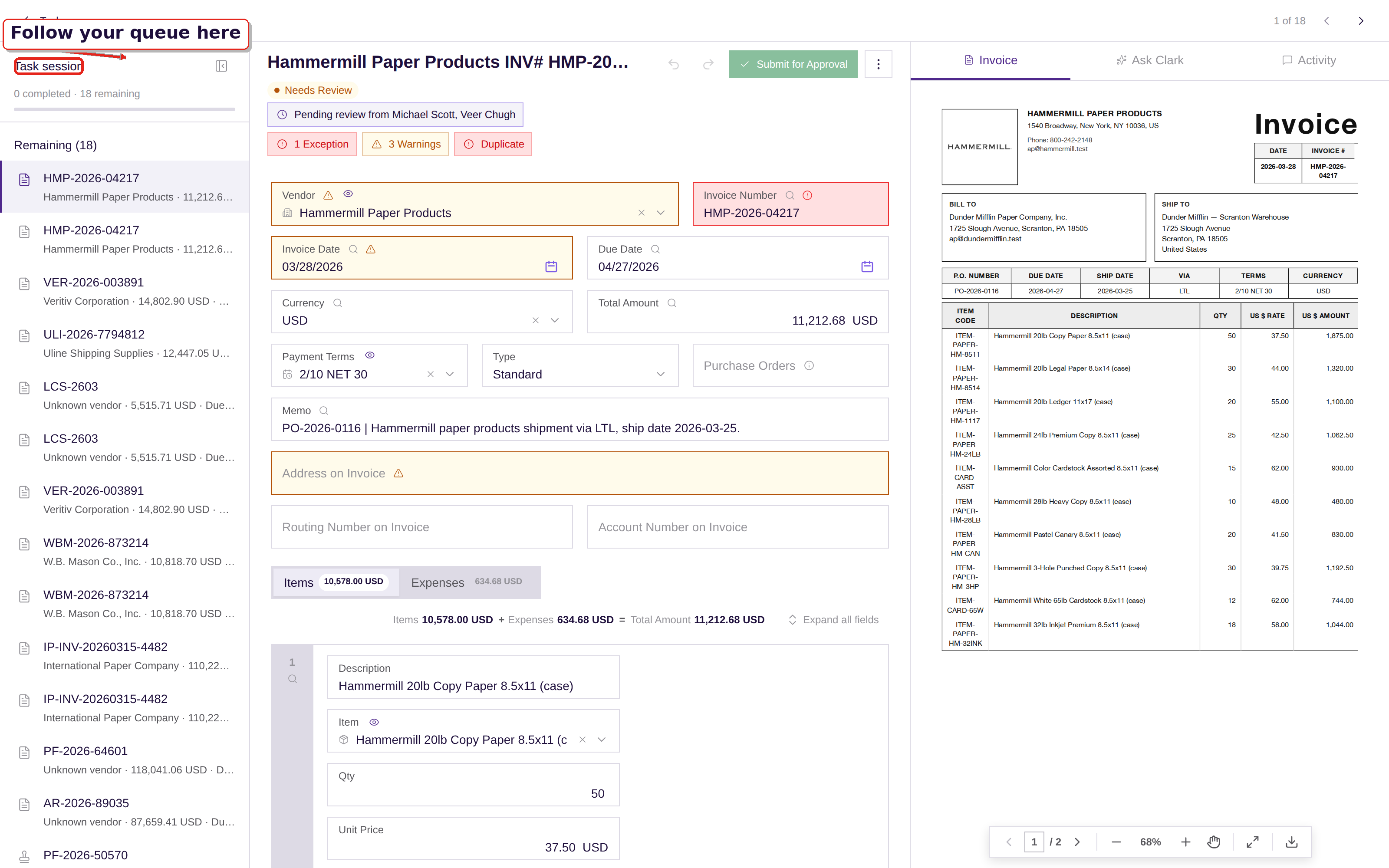
In a session, the Task session rail is the only left-side navigation, and the document you are working on fills the rest of the screen.
Items you finish move into a collapsed Completed (N) group at the bottom of the rail. Open that group to reread anything you already handled during the session; a completed item opens as read-only, so you can check what you did without changing it. When everything is done, the completion screen shows You're all caught up with a Back to Tasks button. The Tasks workspace walks through the list, the tabs, and focus mode step by step.
Duplicate review works from both invoices
When Clerked suspects that two invoices are the same bill, it raises a duplicate notice. Before, only one invoice in the pair carried the notice, so the other invoice looked clean and the exception could feel one-sided. Now both invoices show the notice, and whichever one you open is a valid place to resolve it: settle the question once and it clears on both.
Open the notice on the invoice and review the match. Choose Reconcile Duplicates to compare the two invoices side by side, or Not a Duplicate when they are genuinely different bills. When there is more than one possible copy, the comparison steps you through each one. The decision is recorded once, and the paired invoice updates live without a refresh. Duplicate invoice notices has the full walkthrough.
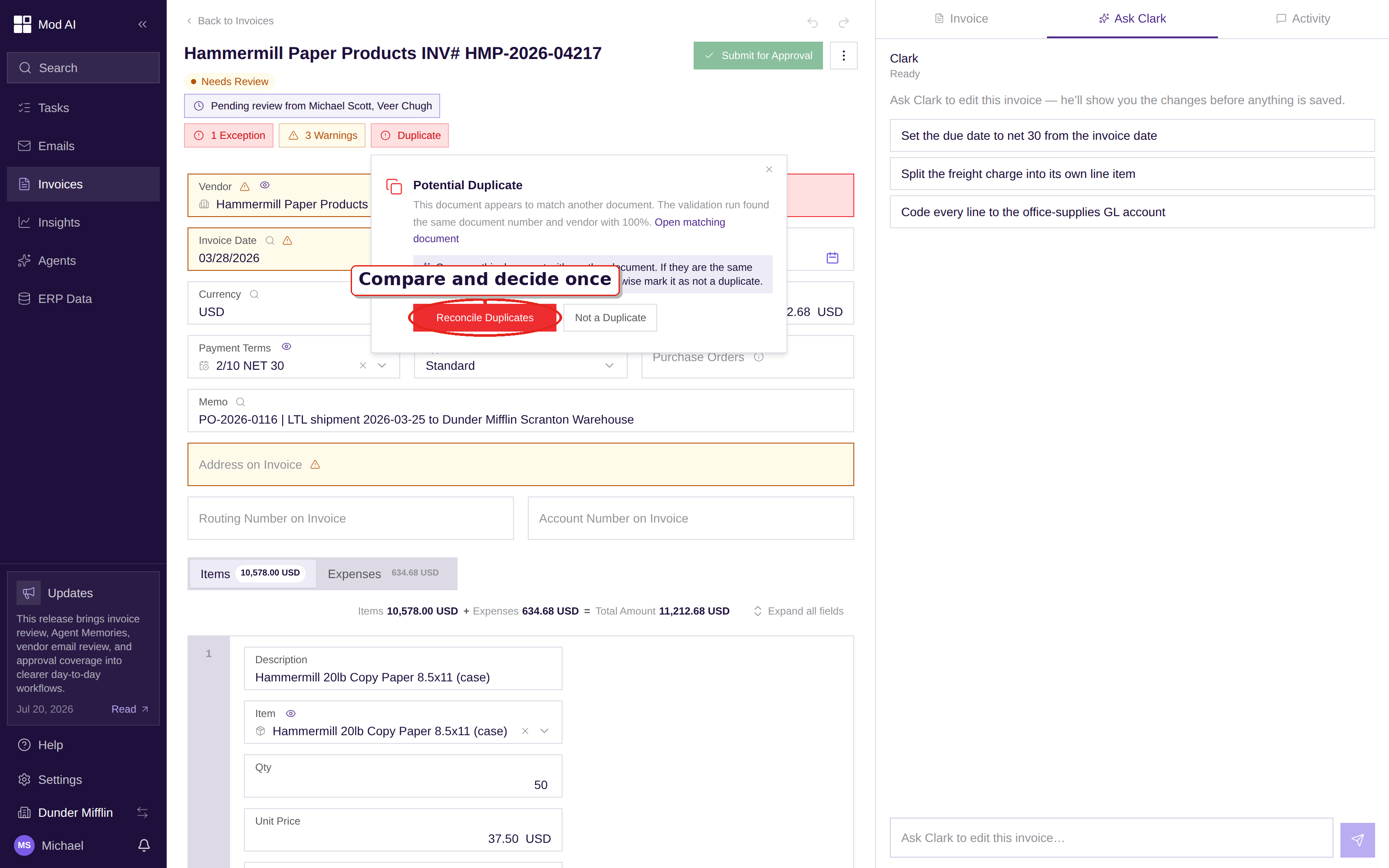
Open the duplicate notice on either invoice, then decide once: reconcile the copy, or keep both when they are different bills.
ERP document numbers you recognize
After an invoice is sent to your ERP, the ERP ID column now shows the same document number you would see inside the ERP itself — for example the SAP document ID or the Epicor invoice number — instead of a long technical identifier. Search and filters match that number too, so you can paste a document number from your ERP into Clerked and find the invoice.
You may still see the older technical identifier on invoices that were exported before this release or that were brought in from ERP history; newly exported invoices use the readable number. Search, filter, and save views covers the list columns and filters.
Clark's reasoning cites its memories
Clark is the agent — Clerked's assistant that reads your documents and fills in the coding. When Clark chose a value, the sparkle beside that field opens Clark's reasoning, a short explanation of why. When that reasoning relied on a memory (a saved rule your team approved), the memory is now cited in plain language you can read, instead of a technical reference. The invoice's Activity tab also records events such as Clark used 2 memories, so you can trace a decision after the fact.
Behind the scenes, the recommendation banner's confidence is better tuned, and the day-to-day memory workflows — creating a memory, reviewing a nightly proposal, and archiving a rule you no longer want — are more reliable end to end. Review AI recommendations explains the reasoning surfaces, Agent Memories explains what memories are, and Review Agent Memory history shows where each use is recorded.
Editing after approval
Some teams track what happens to an invoice after it is approved — for example, a field that records whether the invoice has been entered into another system. Workspaces can now choose specific non-critical fields like that to stay editable on approved invoices. Open the approved invoice and edit that field directly; everything that matters to the approval — amounts, coding, vendor — stays locked exactly as it was approved.
If your workspace does not use a field like this, nothing changes for you. If you want one, ask your Clerked contact to set it up. Invoice statuses explains what approved invoices allow.
Steadier processing and editing
A few improvements in this release show up as things simply not going wrong:
- Documents with unusual formatting that previously stopped with a processing error now finish on the first pass, so fewer invoices wait for a retry.
- Invoice totals stay accurate as you edit line items and taxes; the subtotal no longer goes stale after a rebalance.
- Tabbing between line-item fields no longer loses your place when the page saves in the background. Your focus, cursor, and any open row stay where you left them. Live autosave and validation describes how saving works while you edit.
For customers using SAP
When an invoice line is matched to a purchase-order line, the Item field now fills in automatically from that PO line and stays locked, so the coding matches the purchase order without retyping. A matched PO line that has no product shows a locked dash, and an unmatched line stays empty and editable with the usual Item picker. This is an SAP workflow change, but this remains a general release with no SAP-only audience setting.
What to do
No action is needed. Open Tasks and start a session to see the focused workspace. If you have a duplicate notice open on either side of a pair, resolve it once from whichever invoice you are on. After your next export, check the ERP ID column for the document number you know from your ERP.