Manage organization settings

Your organization is the top-level account in Mod AI. It holds every entity (company), every user, and every platform-wide setting.

An organization can have multiple entities under it. Each entity operates independently with its own invoices, vendors, chart of accounts, and settings, but all live under one organization.

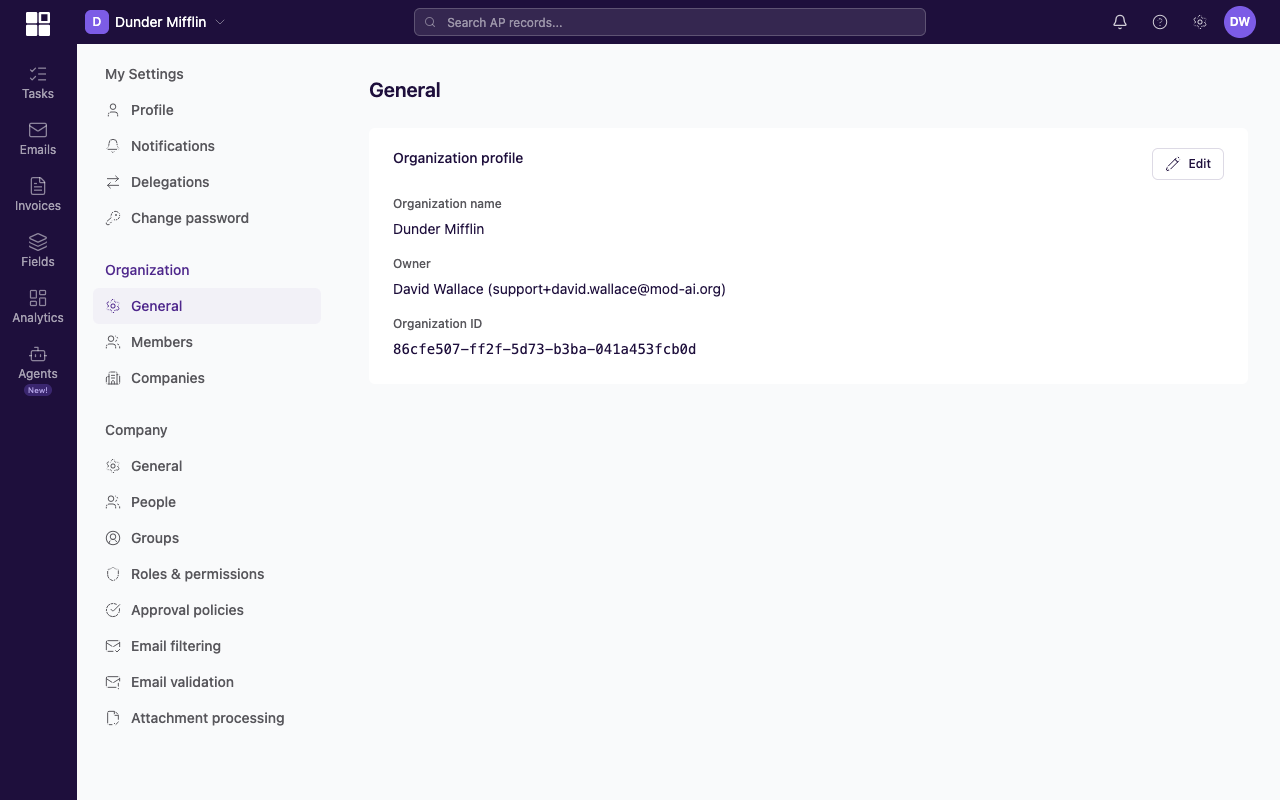
Organization General settings page in the three-tier settings nav

Organization General settings page in the three-tier settings nav.

note

Only organization Administrators can access organization settings.

Open organization settings

  1. In the top-right corner of any page, click your avatar. The avatar overlay menu opens. Click Settings.
  2. In the left-hand Settings nav, you'll see three tiers: My Settings, Organization, Company. Click General under the Organization tier (the middle group).
  3. The Organization → General settings page loads in the main content area.

Organization name

The organization name shows up across the platform, in email communications, and on the login screen.

  1. Open Organization → General as above.
  2. Find the Organization Name field at the top of the page (usually in an Organization profile card).
  3. Click the Edit button next to the field (it may be a pencil icon or a labelled Edit button). Type the new name.
  4. Click the primary Save button. A confirmation toast appears in the bottom-right reading Organization updated.

Administrator

Organization Administrators hold the primary:* and company:* wildcards. There can be more than one Administrator. An organization Administrator has the highest level of access and is the only user who can manage organization-level settings, including ownership transfer.

Current organization Administrators are listed on the organization settings page.

Transfer ownership

An organization Administrator can transfer ownership to another admin in the organization.

  1. Open Organization → General (avatar → Settings → Organization → General).
  2. Scroll to the Ownership section on the page (it shows an organization Administrator's name and email).
  3. Click the Transfer ownership button in that section.
  4. A dialog opens with a picker listing every Administrator in the organization. Click the Administrator you want to transfer ownership to.
  5. Read the confirmation warning carefully — once transferred, you lose Administrator powers and the new person gains them. Click the primary confirm button at the bottom-right of the dialog to complete the transfer.
warning

Transferring ownership is significant. The new Administrator gets full control over the organization, including the ability to remove other admins. Confirm only when you mean to.

We use cookies to understand how visitors use our site.